Captain Ratatype
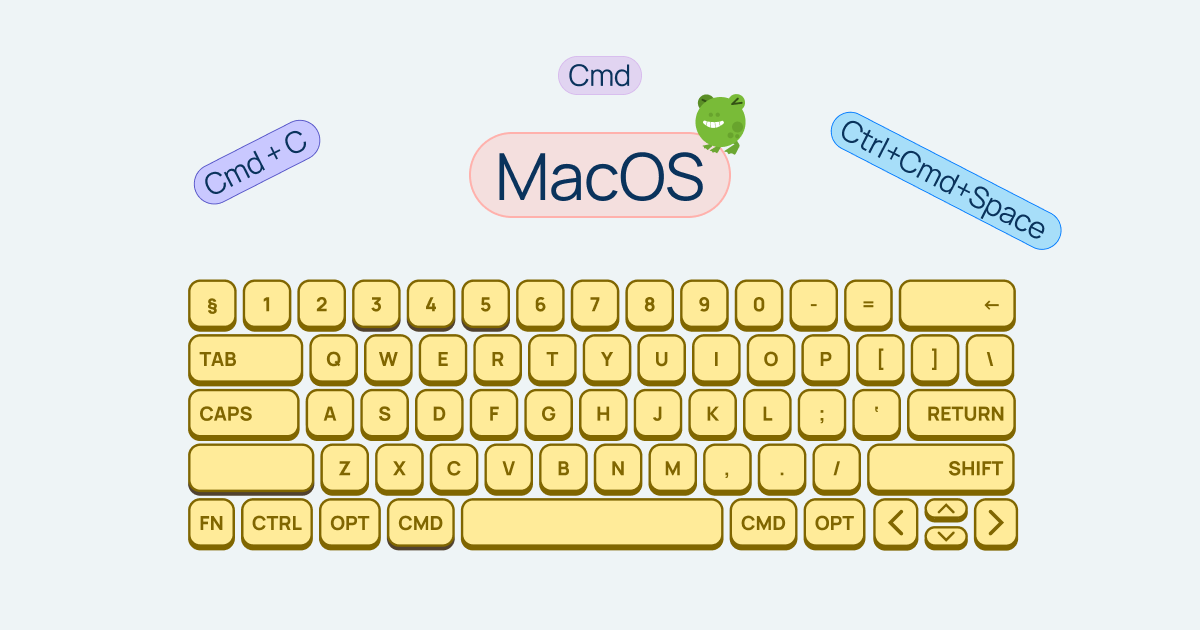
Add to this your touch typing skill, which you can easily master with Ratatype — and you're a real programmer! (Well, almost). OK, jokes aside, let's get into it.
Mac keyboard shortcuts you need to know right now
Essential macOS shortcuts. These secret key combinations will help you work with text and cover your basic needs for quick manipulations.
Cmd +C — copy
Cmd +V — paste
Cmd +X — cut
Cmd +Z — undo
Cmd +Shift+Z — redo
Cmd +A — select all
Cmd +S — save
Cmd +P — print
Cmd +F — find
Cmd +W — close tab
Cmd +Q — quit application
Cmd +Tab — switch between applications
Cmd +Space — Spotlight search
Browser shortcuts
These will make working in your browser more enjoyable and significantly more efficient.
Cmd +T — new tab
Cmd +L — go to address bar
Cmd +R — refresh page
Cmd +Shift +T — reopen closed tab
Cmd +[ or ] — back/forward
How to take screenshots on macOS
We covered how to take a screenshot on Mac and Windows in a previous article.
Secret Mac keyboard shortcuts for working with text
Do you work with text a lot and get tired of moving the cursor back and forth with your mouse? Here are some handy tips:
Cmd +B — bold
Cmd +I — italic
Cmd +U — underline
Option +Delete — delete word to the left
Cmd +Delete — delete line to the left
Fn +Delete — delete character to the right
Cmd +Arrow — jump to beginning/end of line
Option +Arrow — jump word by word.
How to type a dash on Mac
Option +- — en dash (–)
Option +Shift +- — em dash (—)
How to type quotation marks on Mac
Option +[ — opening curly quote (“)
Option +Shift +[ — closing curly quote (”)
Option +] — opening single quote (‘)
Option +Shift +] — closing single quote (’)
For Ukrainian «herringbone» quotes:
Option + + — » Option+Shift+ + — «
Shortcuts for system actions
Cmd +Ctrl +Q — lock screen
Cmd +Option +Esc — force quit application
Ctrl +Cmd +Space — emoji picker
Cmd +, — current app preferences
Cmd +H — hide window
Cmd +M — minimize window
Now you know everything! All that's left is to learn touch typing so you can become a true master of the keyboard.