 Oleksandra Lietova
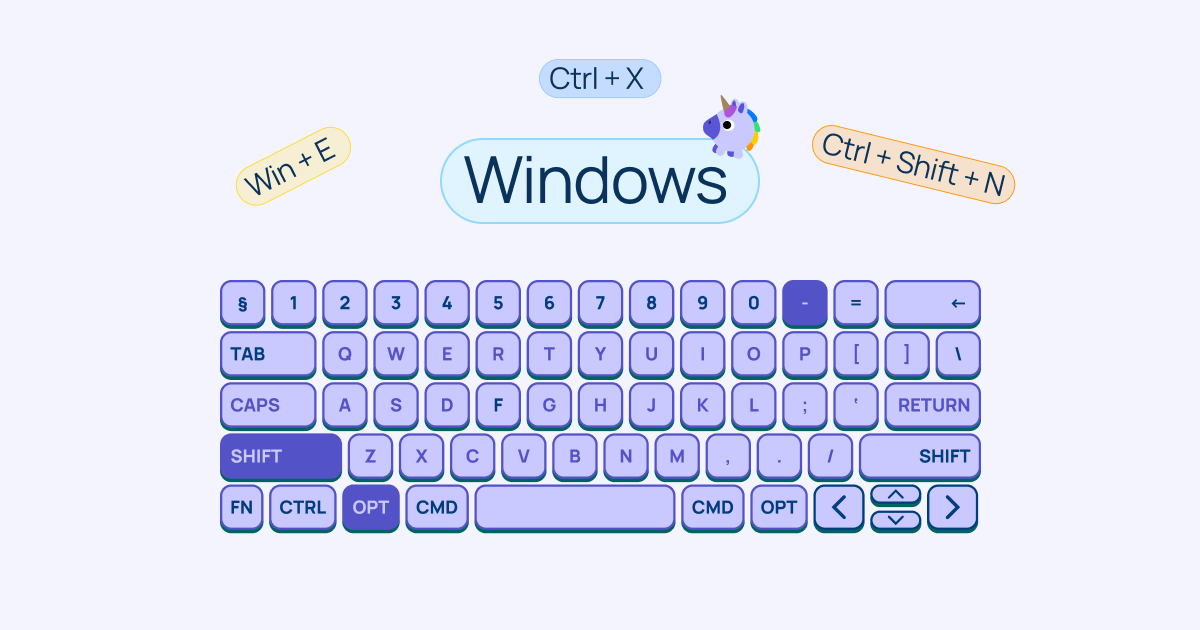
Which Windows keyboard shortcuts will make your computer work easier
Basic Windows key combinations
- Win + E — Open File Explorer
- Win + D — Show desktop
- Win + L — Lock your computer
- Win + I — Open Settings
- Win + V — Clipboard history
- Win + Shift + S — Screenshot a selected area
- Alt + Tab — Switch between windows
- Ctrl + Shift + Esc — Open Task Manager directly
"Secret" key combinations
- Win + . (period) — Emoji and symbol panel
- Ctrl + Shift + V — Paste without formatting (in some apps)
- Ctrl + Shift + N — Create a new folder (in File Explorer)
- Win + Ctrl + Shift + B — Restart graphics driver (saves you when the screen freezes)
- Ctrl + Backspace — Delete an entire word
- Win + number — Launch app from taskbar (1 — first, 2 — second, etc.)
- Fn + F2 — Rename a file
- Alt + Enter — View file/folder properties
- Ctrl + L — Go to address bar (File Explorer, browser)
- Win + P — Projection mode (for a second monitor)
Windows keyboard shortcuts for working with text
If you work a lot with text and text editors, these shortcuts will help make your work more efficient.
Basic editing
- Ctrl + C — Copy
- Ctrl + X — Cut
- Ctrl + V — Paste
- Ctrl + Z — Undo
- Ctrl + Y — Redo
- Ctrl + A — Select all
Text navigation
- Ctrl + ← / → — Move one word left/right
- Ctrl + ↑ / ↓ — Move one paragraph up/down
- Home — Go to beginning of line
- Fn + End — Go to end of line
- Ctrl + Home — Go to beginning of the next word
- Ctrl + End — Go to end of word
- Fn+ Page Up / Page Down — Move one page up/down
Text selection
- Shift + ← / → — Select one character
- Shift + ↑ / ↓ — Select one line
- Ctrl + Shift + ← / → — Select one word
- Fn + Home — Select to beginning of line
- Fn + End — Select to end of line
- Ctrl + Fn + Home — Select to beginning of document
- Ctrl + Fn + End — Select to end of document
Deleting text
- Backspace — Delete character to the left
- Delete — Delete character to the right
- Ctrl + Backspace — Delete word to the left
- Ctrl + Delete — Delete word to the right
Find and replace
- Ctrl + F — Find
- Ctrl + H — Replace
- F3 or Ctrl + G — Find next
Formatting (in text editors)
- Ctrl + B — Bold
- Ctrl + I — Italic
- Ctrl + U — Underline
- Ctrl + Shift + V — Paste without formatting
- Ctrl + ] / [ — Increase/decrease font size
Working with documents
- Ctrl + N — New document
- Ctrl + O — Open file
- Ctrl + S — Save
- Ctrl + Shift + S — Save as
- Ctrl + P — Print
- Ctrl + W — Close document
"Secret" text shortcuts
- Alt + numbers (NumPad) — Insert characters by code (Alt + 0169 = ©)
- Ctrl + Enter — Page break (Word)
- Double-click — Select word
- Triple-click — Select paragraph
- Ctrl + click — Select sentence (Word)
Bonus tips: "How to type an em dash on Windows?" and "How to type guillemets (angle quotes)?"
How to type an em dash (—)
- Alt code — hold Alt + type 0151 on NumPad
- AutoCorrect in Word — two hyphens (--) automatically become a dash
- Shortcut in Word — Ctrl + Alt + minus on NumPad
- Character Map — Win + R → charmap → find the symbol
- Emoji panel — Win + . → "Symbols" tab → "Punctuation" section
Difference between dashes
- - Hyphen — regular key: used in compound words
- – En dash — Alt + 0150, used for ranges: 2020–2024, New York–London
- — Em dash — Alt + 0151, used as punctuation in sentences
How to type guillemets («»)
- Alt codes: « (opening) — Alt + 0171, » (closing) — Alt + 0187
- Emoji panel: Win + . → "Symbols" → "Punctuation"
- AutoCorrect in Word: Type " — Word replaces automatically
- Character Map: Win + R → charmap
Types of quotation marks
- «» — Guillemets (French), used in: Ukrainian, Russian, French
- „“ — Low-high quotes (German), alternative in some languages
- "" — English double quotes
- '' — English single quotes, for quotes within quotes
Alt codes for all quotation marks
- «» — open: Alt + 0171, close: Alt + 0187
- „“ — open: Alt + 0132, close: Alt + 0147
- "" — open: Alt + 0147, close: Alt + 0148
- '' — open: Alt + 0145, close: Alt + 0146
Now you know practically all Windows keyboard shortcuts. All that's left is to improve your typing speed, and you'll be a true keyboard pro!